How to install and activate an eSIM (iPhone and Android)
Installing an eSIM takes a few minutes: you scan a QR code, confirm the installation in an app or type in a code, and the phone downloads the profile. This guide covers what to check first, the steps on iPhone, Google Pixel and Samsung, the settings for a travel eSIM, moving an eSIM to a new phone and the most common problems. If you are new to eSIM, start with what an eSIM is and how it works.
Before you start
- Your phone supports eSIM. Dial *#06#. If an EID is shown next to the IMEI, the phone has an eSIM chip. Most recent iPhones, Pixels and Samsung Galaxy phones do, many older and cheaper models do not.
- Your phone is unlocked. A phone locked to a carrier usually accepts only that carrier's eSIMs. If you bought the phone on a contract, check with your carrier whether it is unlocked.
- You have Wi-Fi. The phone downloads the profile over the internet. Use a stable Wi-Fi connection, ideally at home before a trip.
- You have the installation details. After buying, you get a QR code, a link to the provider's app or a manual code by email or in your account.
Three ways to install an eSIM
| Method | How it works | Good to know |
|---|---|---|
| QR code | scan the code with the phone camera or in the eSIM settings | you need a second screen or a printout, because the phone cannot scan its own display |
| Provider app | buy and install in the app, the app hands the profile to the phone | the easiest route on the phone you will use the eSIM on |
| Manual code | enter the SM-DP+ address and the activation code in the eSIM settings | useful when you only have one device and no app; copy the codes exactly |
On iPhone you can sometimes also tap an installation link or a button in the email, and iOS opens the eSIM setup directly. Whether this is offered depends on the provider.
Install an eSIM on iPhone
- Connect to Wi-Fi.
- Open Settings > Cellular (in some regions and iOS versions called Mobile Data or Mobile Service).
- Tap Add eSIM (or Add Cellular Plan).
- Choose Use QR Code and scan the code. For the manual method, tap Enter Details Manually and type the SM-DP+ address and activation code.
- Confirm, wait until the download finishes, then give the new line a label such as "Travel".
- Choose which line to use for calls, texts and mobile data. You can change this later.
Menu names differ between iOS versions and regions. If you do not see these exact items, look for "eSIM" or "Cellular" in the settings search.
Install an eSIM on Android
Menu names depend on the phone brand and the Android version. These are the usual paths:
- Google Pixel: Settings > Network & internet > SIMs > Add SIM (or "+"), then "Download a SIM instead?" and scan the QR code. For a manual code, tap "Need help?" or "Enter it manually".
- Samsung Galaxy: Settings > Connections > SIM manager > Add eSIM, then "Scan QR code from service provider". The manual option is usually "Enter activation code".
- Other Android phones: look under Network, Mobile network or SIM in the settings, or search the settings for "eSIM".
After installation, turn the new line on, give it a name and choose which line handles mobile data.
Travel eSIM: the right settings
A travel eSIM is a second line next to your SIM from home. A few settings decide whether it works when you land and whether you avoid roaming charges on your home line.
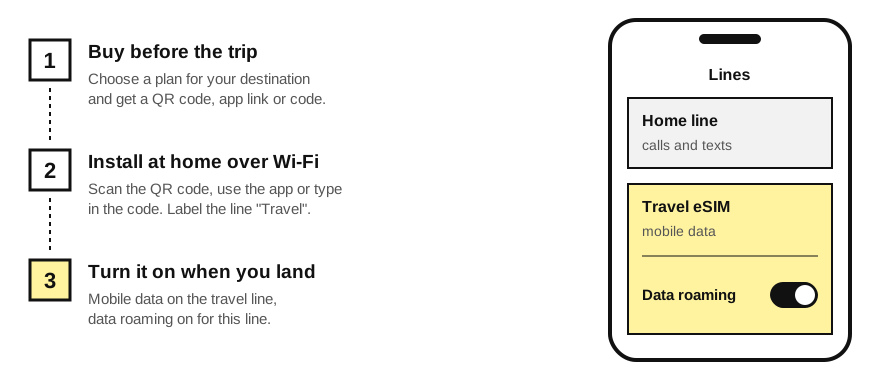
- Install it at home over Wi-Fi, a day or a few days before the trip. At the airport you may not have a good connection to download it.
- Label the line, for example "Home" and "Travel", so you can tell them apart in the settings.
- Keep your home line for calls and texts. You stay reachable on your own number and still get text codes from your bank.
- Set the travel eSIM as the line for mobile data. On iPhone this is Cellular Data, on Android Mobile data or Data preference.
- Turn on data roaming for the travel eSIM line. The travel eSIM connects through a local partner network, so the phone treats it as roaming. Without this setting there is no data.
- Turn off data roaming on your home line if you want to avoid your carrier's roaming charges for data.
- Check when the plan starts. With many providers the validity starts at the first connection at the destination, with some at installation or purchase. The plan description or the provider's help pages tell you which applies.
Transferring an eSIM to a new phone
Your main eSIM from your home carrier can usually be moved to a new phone:
- iPhone: during the setup of a new iPhone you are offered to transfer the eSIM from your old iPhone. Later you can do it in Settings > Cellular > Add eSIM > Transfer From Nearby iPhone. This works only if your carrier supports eSIM Quick Transfer.
- Android: some recent Pixel and Samsung models offer to transfer the eSIM during setup or in the SIM settings, again only if the carrier supports it.
- Between iPhone and Android, or when the transfer is not offered, ask your carrier for a new eSIM for the new phone. Many carriers do this in their app or online account.
Travel eSIMs usually cannot be moved to another phone. Some providers allow it in exceptional cases, so ask their support before you delete anything. If you are getting a new phone before a trip, install the travel eSIM on the new phone. More on how switching phones differs between eSIM and a card: eSIM vs physical SIM.
Common problems
- Installed but no data. In most cases data roaming is off for the travel eSIM line, or mobile data is still set to your home line. Check both settings, then turn airplane mode on and off.
- No network after landing. Wait a few minutes, restart the phone and, if needed, select a network manually in the line's settings. The provider's app or help pages list the partner networks.
- APN settings. Usually they are set automatically. If the provider gives you an APN, enter it in the line's mobile data network settings.
- "This code is no longer valid". A QR code usually works only once. If the installation was interrupted, contact the provider for a new code instead of scanning the same one again.
- Do not delete the eSIM. A deleted travel eSIM often cannot be installed again. Turn the line off instead when you do not need it.
Compare travel eSIM prices
Before installing, you need a plan. Providers such as Airalo, Holafly or Yesim sell travel eSIMs, and for the same package the most expensive offer is often more than twice the price of the cheapest. We read their prices every day for 80 destinations. Choose a country, number of days and amount of data:
Frequently asked questions
How long does it take to install an eSIM?
Usually a few minutes over a good Wi-Fi connection. Activation by your carrier or provider can take a little longer in some cases.
Can I install an eSIM without Wi-Fi?
The phone needs an internet connection to download the profile. Mobile data from your other line works too, but abroad that may mean roaming charges, so installing at home over Wi-Fi is the safer choice.
Can I use the same QR code twice?
Usually not. Most QR codes can be used for one installation only. If you need to reinstall, ask the provider for a new code.
Do I need to remove my SIM from home?
No. Most eSIM phones can use two lines at once. Keep your home SIM for calls and texts and use the travel eSIM for data.
When does my travel eSIM plan start?
That depends on the provider and the plan. Often it starts at the first connection to a network at the destination, sometimes already at installation. Check the plan details before you install.